Quick answer: To speed up a WordPress website, start with good hosting, install a caching plugin, compress your images to webp, and remove plugins you do not use. These four steps fix most of the slowdown on a typical site. Once those are done, move on to deeper fixes such as database cleanup and a content delivery network.
A slow website costs you visitors before they even read a word. Google also treats page speed as a ranking signal through Core Web Vitals, so a sluggish site can quietly hurt your search rankings as well as your bounce rate.
This guide gives you a clear order to work through: quick wins first, then deeper technical fixes, then how to actually measure whether any of it worked.
Why WordPress Speed Matters
Page speed affects three things at once: how visitors feel about your site, how well it converts, and how it ranks in Google. A one second delay in load time can noticeably increase your bounce rate, and every extra second visitors wait is a chance for them to leave before they see what you offer.
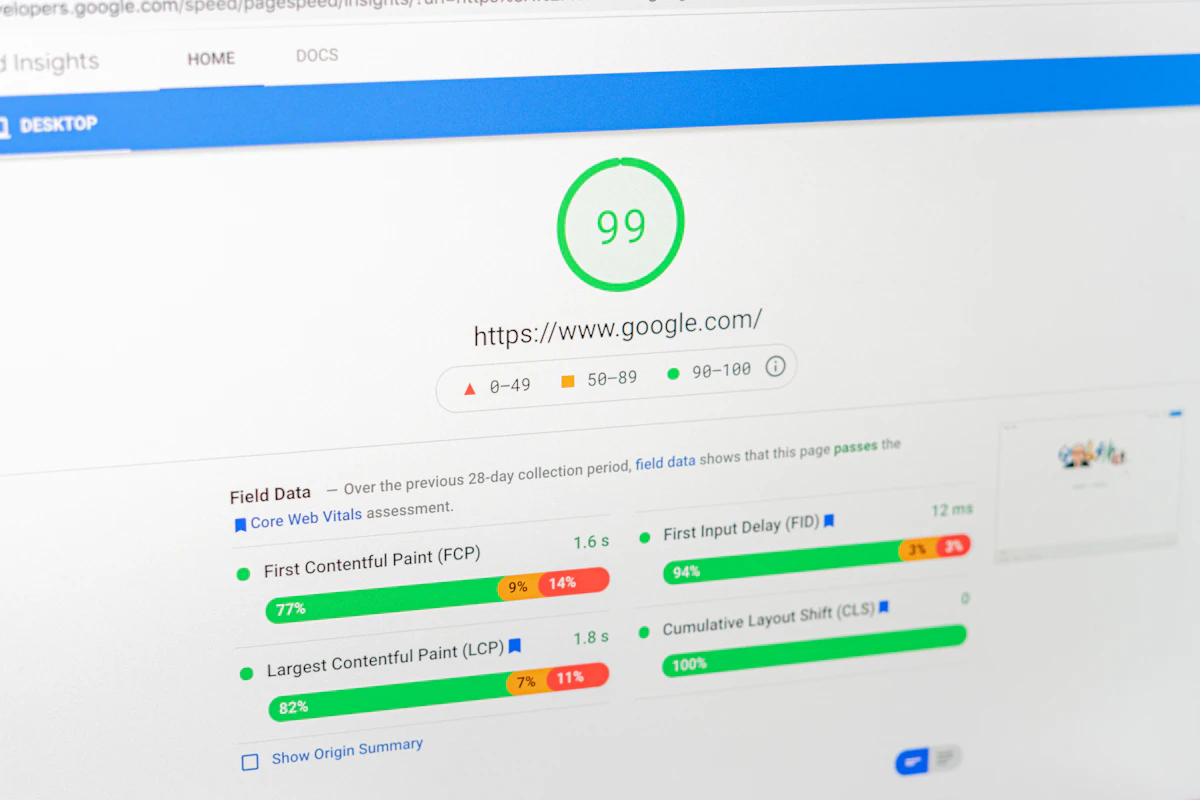
Search engines measure speed through Core Web Vitals, three metrics that look at loading, interactivity and visual stability:
- Largest Contentful Paint (LCP): how long the biggest visible element takes to load. Aim for under 2.5 seconds.
- Interaction to Next Paint (INP): how quickly your site responds when someone clicks or taps something.
- Cumulative Layout Shift (CLS): how much your page jumps around while loading. Aim for as close to zero as possible.
The 15 Minute Quick Win Checklist
Before you touch anything technical, run through this short list. It takes about fifteen minutes and fixes the most common causes of a slow WordPress site.
- Install a caching plugin. WP Super Cache, LiteSpeed Cache or W3 Total Cache all work well and take minutes to set up with default settings.
- Delete unused plugins and themes. Do not just deactivate them. Delete anything you have not used in the last six months.
- Convert your images to webp. Webp files are typically 25 to 35 percent smaller than jpeg or png at the same visual quality, and most image plugins can convert your whole media library automatically.
- Turn on lazy loading. WordPress has had native lazy loading built in since version 5.5, so images below the fold only load once a visitor scrolls to them.
- Run a speed test. Use this as your baseline before you make any deeper changes, so you can measure real improvement later.
How to Test Your WordPress Site Speed Properly
You need a reliable before and after comparison, so pick one main tool and stick with it throughout your optimisation work.
Google PageSpeed Insights gives you the exact Core Web Vitals scores Google uses for ranking, plus specific, prioritised recommendations. This is the best starting point for most site owners.
GTmetrix gives a more detailed waterfall breakdown of every file your page loads, which helps if you want to see exactly which script or image is slowing things down.
Pingdom is useful if your visitors are spread across several countries, since it lets you test load time from different global locations.
Test your homepage and one typical blog post or product page, since results can vary significantly between page types. Run each test three times and take the middle result, since a single test can be affected by temporary server load.
Choose Hosting Built for Speed
No amount of plugin tweaking overcomes weak hosting. Your server is where every request starts, and it sets a ceiling on how fast your site can ever be.
Shared hosting is the cheapest option, but you share server resources with many other websites. If one of them gets a traffic spike, your site can slow down too. It is fine for a small hobby blog, but risky for anything generating real revenue.
Managed WordPress hosting from providers built specifically for WordPress, such as Kinsta, WP Engine or SiteGround, gives you server-level caching, optimised PHP configurations and often a built-in CDN. This is the best balance of cost and performance for most small businesses.
VPS or cloud hosting gives you dedicated resources and full control, at the cost of needing more technical know-how to configure it properly.
Whatever you choose, look for a host offering PHP 8.2 or higher, since newer PHP versions run noticeably faster than PHP 7.x, and a time to first byte (TTFB) under 200 milliseconds.
Set Up Caching Correctly
A caching plugin stores a ready-made version of your pages, so WordPress does not have to rebuild them from scratch for every visitor. This is usually the single biggest speed improvement you can make.
Popular options include LiteSpeed Cache (excellent if your host supports LiteSpeed servers), WP Rocket (a straightforward paid option with sensible defaults), and W3 Total Cache (free, powerful, but needs more manual configuration).
After installing your caching plugin, enable page caching and browser caching at minimum. More advanced settings like object caching and database caching help further, but only if your host supports them, so check your hosting documentation first.
Optimise Your Images
Images are usually the heaviest assets on any web page, and an unoptimised image gallery or product catalogue can single-handedly wreck your load time.
Three steps fix most image-related speed problems: convert to webp format, compress before uploading rather than relying on WordPress to do it for you, and resize images to the actual display size rather than uploading a huge original and letting CSS shrink it visually. A photo displayed at 800 pixels wide does not need to be a 4000 pixel original.
Plugins such as ShortPixel, Imagify or Smush can batch-convert your existing media library to webp and compress new uploads automatically going forward.
Reduce Plugin and Theme Bloat
Every plugin adds CSS, JavaScript or database queries, and it adds up faster than most site owners expect. Go through your plugin list and ask honestly whether each one earns its place.
Heavy page builders like Elementor or Divi can add noticeable overhead if used carelessly. If you use one, disable its assets on pages that do not need them, avoid unnecessary animations, and consider the native WordPress block editor for simpler pages where you do not need a page builder’s full feature set.
A lightweight, well-coded theme such as GeneratePress, Astra or Blocksy typically outperforms a heavier, feature-packed theme, even before you add any plugins on top.
Clean Up Your Database
WordPress accumulates clutter over time: post revisions, spam comments, expired transients and unused metadata. A bloated database slows down every single query your site makes.
You can limit the number of post revisions WordPress keeps by adding a line to your wp-config.php file, though back up your site before editing this file directly. Plugins like WP-Optimize or Advanced Database Cleaner give you a safer, point and click way to do the same cleanup without touching code.
Add a Content Delivery Network
A content delivery network (CDN) stores copies of your site’s files on servers around the world, so visitors load your site from a server physically close to them rather than from your single origin server.
Cloudflare offers a solid free tier that noticeably improves load time for most sites, particularly if your visitors are spread across different countries. Many managed WordPress hosts, including Kinsta, include CDN functionality as standard, so check your hosting plan before paying for a separate service.
Mobile Speed Deserves Its Own Attention
Most WordPress speed guides treat mobile as an afterthought, but the majority of web traffic now happens on mobile devices, and mobile connections are typically slower and less stable than desktop broadband.
Test your site speed specifically on mobile, not just desktop, since PageSpeed Insights and GTmetrix both let you choose which one to test. Pay particular attention to Cumulative Layout Shift on mobile, since small screens make layout jumps more jarring and more likely to cause an accidental misclick.
Avoid intrusive pop-ups that take time to load and shift your page layout on mobile, since these hurt both your CLS score and your user experience at the same time.
How Much Speed Improvement Can You Realistically Expect?
Results vary depending on your starting point, but a reasonable expectation looks like this: a site starting from cheap shared hosting with no caching and unoptimised images can often cut load time by 50 to 70 percent after working through hosting, caching and image optimisation. A site that already has decent hosting and caching in place will see smaller, more incremental gains from the deeper fixes like database cleanup and CDN setup.
Set a realistic target rather than chasing a perfect 100 score. A load time under 2.5 seconds and a PageSpeed score in the 80s or 90s is a strong result for most real-world WordPress sites, especially those with page builders or larger image galleries.
Common Mistakes That Undo Your Speed Work
A few habits quietly cancel out the improvements above, even after you have done everything correctly.
Installing too many speed plugins at once. Running two caching plugins together, or a caching plugin alongside an aggressive optimisation plugin, can cause conflicts that make your site slower, not faster. Stick to one caching solution and one image optimisation solution.
Skipping the before and after test. Without a baseline measurement, you cannot tell whether a change actually helped. Always test before you start, and again after each significant change.
Ignoring third-party scripts. Live chat widgets, tracking pixels and embedded fonts from external services can quietly add significant load time, even when your own site is well optimised. Audit these the same way you would audit your plugins.
Forgetting to test after theme or plugin updates. An update can introduce new, heavier code without any obvious warning. A quick speed check after major updates catches this before it becomes a problem.
Chasing a perfect score instead of a good one. Diminishing returns set in fast once you are past the 80 to 90 range. The last few points often need disproportionate effort for very little real-world benefit to your visitors.
Frequently Asked Questions
Why is my WordPress site so slow?
The most common causes are weak hosting, no caching plugin, unoptimised images, and too many active plugins. Work through these four areas first before looking at more advanced fixes.
What is a good WordPress page load time?
Aim for under 2.5 seconds for your Largest Contentful Paint. Total page load under 2 to 3 seconds is a reasonable target for most content sites and small business websites.
Do I really need a caching plugin?
Yes. A caching plugin is usually the single biggest and easiest speed improvement available, since it stops WordPress rebuilding every page from scratch for each visitor.
Does a CDN actually help WordPress speed?
Yes, particularly if your visitors are spread across different countries or regions. A CDN serves your files from a server physically closer to each visitor, which reduces load time.
Should I switch web hosts to improve speed?
If you are on cheap shared hosting and have already tried caching and image optimisation without much improvement, switching to managed WordPress hosting is usually the next most effective step.
How often should I check my WordPress site speed?
Check after any major change, such as a new plugin, theme or design update, and do a general check every few months even without changes, since plugin updates can quietly affect performance over time.
Bringing It Together
Work through this guide in order: quick wins first, then hosting and caching, then images and plugin cleanup, then the deeper fixes like database cleanup and a CDN. Test your speed before you start and after each major change, so you know exactly which fixes made the real difference on your site.
If you are choosing tools to help manage this alongside the rest of your website, our guide to the best SEO tools for beginners covers a few that double up for performance monitoring, and our piece on responsive web design best practices is a natural next read if mobile performance is a priority for your site.